

No products in the cart.
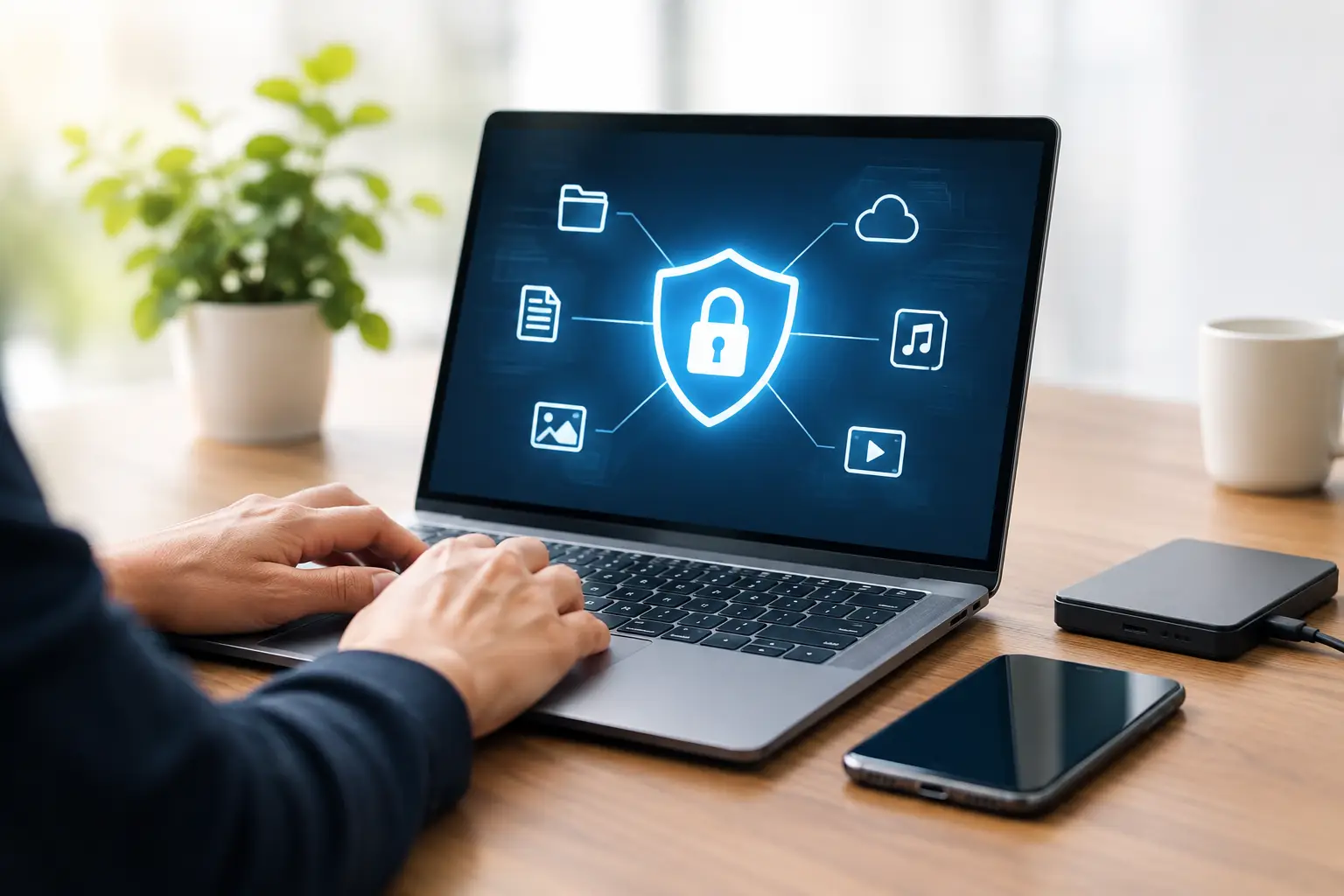
Your phone probably holds more than your wallet: family photos, work messages, banking access, saved passwords, travel plans, and years of contacts. A cracked screen, dead battery, lost phone, or spilled drink can put all of it at risk in minutes. Knowing how to secure device data before something goes wrong gives you more control and far fewer surprises.
You do not need to be a tech expert to protect what matters. A few practical habits can keep your files available even when your phone or laptop is not.
A backup is your safety net. It creates a separate copy of your important information, so a damaged, stolen, or failed device does not become a permanent loss.
For phones, turn on automatic cloud backup through your device settings. Make sure it includes photos, contacts, messages, app data, and device settings where available. Check that you have enough storage space, because a backup that stopped months ago will not help much after an accident.
For laptops, use a combination of cloud storage and an external drive if possible. Cloud storage is convenient for documents you use often, while an external drive provides an additional copy of larger files, photos, videos, and project folders. This approach matters if you lose access to an account or your laptop has a serious hardware failure.
Automatic does not always mean complete. Once a month, open your backup settings and check the date of the last successful backup. Look through your photo app or cloud drive from another device to confirm recent files are there.
If you have a new phone, take a minute to confirm contacts, notes, authentication apps, and files have transferred correctly before wiping or trading in the old one. Those small checks are much easier than trying to recover missing data later.
A backup protects your information after a problem. Strong access controls protect it while your device is still in your hands.
Use a passcode that is not easy to guess, and enable Face ID, fingerprint login, or another biometric option for convenience. A six-digit code is better than a four-digit code, and a longer alphanumeric passcode offers even more protection. Avoid birthdays, repeating numbers, addresses, and anything a friend could guess from social media.
Your email account deserves extra attention. Email is often the key to password resets for banking, shopping, social media, and work accounts. Use a unique password and turn on two-factor authentication. An authenticator app is generally safer than receiving verification codes by text, although text verification is still better than no second step at all.
For people who manage many accounts, a trusted password manager can make secure habits easier. It creates and stores different strong passwords, so you do not have to reuse the same one everywhere. The trade-off is that you must protect the password manager with a strong master password and recovery information you can access safely.
Software updates are not just about new features. They often fix security weaknesses that can expose your accounts, files, or personal information. Turn on automatic updates for your phone, laptop, browser, and commonly used apps whenever practical.
Do not ignore a device that suddenly cannot install updates, gets unusually hot, drains its battery fast, restarts repeatedly, or displays storage warnings. Sometimes the cause is minor, but those issues can also signal failing hardware. A device that will not stay powered on cannot complete a backup when you need it most.
If the screen is cracked but the phone still works, back it up right away. The same applies to a laptop that has started clicking, freezing, or showing error messages. Waiting until the device fully fails can make data recovery more difficult and more expensive.
Free Wi-Fi at airports, hotels, cafes, and waiting rooms is useful, but it is not the place to handle sensitive tasks without caution. Avoid banking, entering payment details, or accessing confidential work files on a network you do not trust. If you need to connect, use your cellular connection or a reputable virtual private network when available.
Turn off automatic Wi-Fi joining so your phone does not connect to unknown networks without asking. Also disable Bluetooth when you are not using it, especially in crowded public spaces.
Shared charging stations can be convenient when your battery is low, but use your own wall charger, power bank, or a charge-only cable whenever possible. If a device asks whether you trust an unfamiliar computer after plugging in, choose not to trust it unless you know exactly what it is.
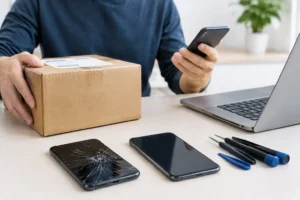
A repair should solve your device problem, not create a privacy concern. Before taking in a phone or laptop, back up your data and remove any information you do not need a technician to access.
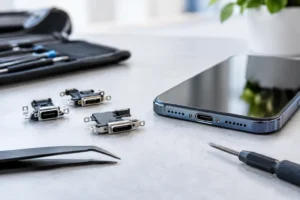
For a phone repair, sign out of sensitive financial apps if you can, remove physical cards from the case, and take note of your device’s serial number. Keep your passcode private. Some repairs may require a technician to test the screen, camera, charging port, speakers, or software functions, but a professional repair shop should explain what access is needed and why.
For a laptop repair, create a separate guest account if testing requires login access. Back up personal documents first, then log out of browser sessions and close sensitive work files. If the device will not turn on, tell the technician what happened, whether there are important files on it, and whether you have a current backup. Clear information can help them choose the safest path.
At iFix Hub, free diagnostics can help identify whether a battery, charging port, screen, or water-related issue is putting your device and data at risk before the problem gets worse.
When a phone gets wet, do not keep charging it to see whether it works. Turn it off if possible, remove it from power, and get professional help quickly. Heat sources and rice can cause more problems or delay proper treatment. Water damage can worsen over time, even if the device appears normal at first.
If your phone is lost or stolen, use its built-in location service from another device to mark it as lost or lock it. Change the password for your primary email account first, then update important financial and shopping accounts. Contact your carrier to suspend service if needed. Do not share verification codes or account passwords with anyone claiming they can return your device.
For a missing laptop, use any installed location or remote-lock feature, change key account passwords, and notify your workplace if work data may be involved. Fast action limits what someone else can access.
Selling, donating, recycling, or passing down an old device is a common point of exposure. Simply deleting photos or signing out of one app is not enough. Back up what you need, sign out of your accounts, remove the device from your account list, disable activation locks according to the manufacturer’s instructions, and perform a full factory reset.
Remove SIM cards and memory cards before handing over the device. If an old laptop contains sensitive files, use its built-in secure erase option or ask a qualified technician about safe data wiping. This is especially worthwhile for devices used for business, taxes, health records, or family accounts.
The best time to protect your data is while your device is still working normally. Set up your backup tonight, check your security settings, and handle repair warning signs early. That way, a broken screen or worn-out battery stays an inconvenience, not a loss of the information you cannot replace.

Need help? Our team is just a message away