

No products in the cart.
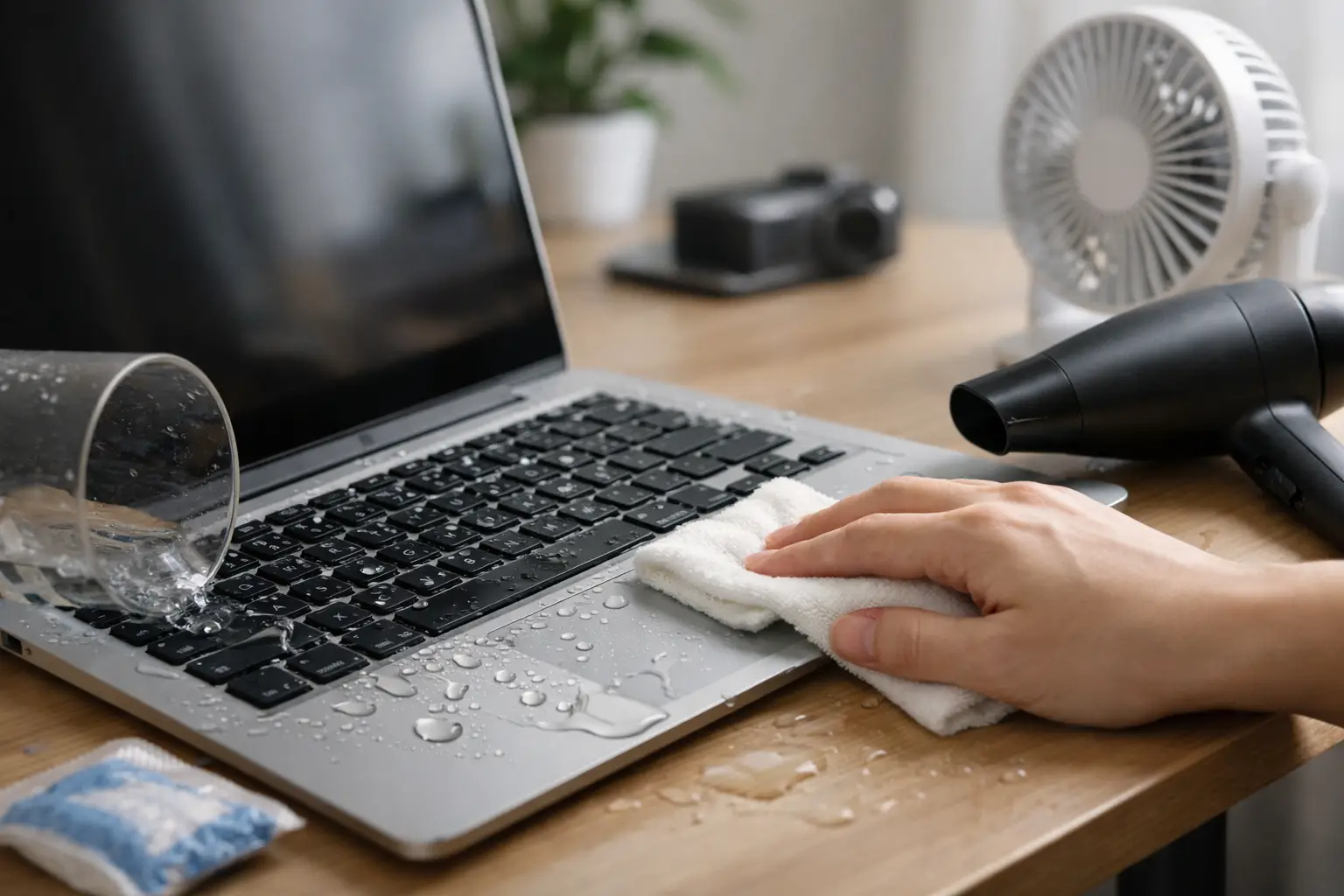
Coffee tips over. Water bottle leaks into your bag. A kid knocks juice across the keyboard. If you’re searching for how to dry wet laptop, the first few minutes matter more than any trick you try later. The goal is simple – stop power, limit corrosion, and avoid turning a small spill into a major repair.
A wet laptop can sometimes be saved, but speed and restraint make the difference. The biggest mistake people make is trying to see if it still works. Pressing the power button, plugging in the charger, or tapping random keys can push moisture deeper and trigger a short. If your laptop got wet, treat it like an urgent repair situation, not a wait-and-see problem.
Start by turning the laptop off immediately. If it is already off, leave it off. Unplug the charger, disconnect any accessories, and remove USB drives, a mouse dongle, memory cards, or anything else attached to the ports.
If the battery is removable, take it out right away. Many newer laptops do not have an easy external battery release, so do not force the case open unless you know exactly what you’re doing. For most people, stopping power and keeping the device off is the safest first move.
Next, gently turn the laptop upside down in an inverted V shape if possible, with the keyboard facing down. This helps liquid drain away from the internal components instead of pooling deeper inside. Put it on a towel or absorbent cloth and let gravity help you.
Use a soft, dry, lint-free cloth to blot visible liquid. Blot, do not wipe aggressively. Wiping can spread moisture into vents, seams, and ports. Pay special attention to the keyboard, trackpad, palm rest, and the edges where liquid likes to collect.
If water spilled into the ports, lightly blot around them. Do not push cotton swabs deep inside. You want to absorb moisture near the opening, not pack fibers into the port.
This is where many laptops go from repairable to severely damaged. Rice is the most common bad advice. It does not reliably remove moisture from inside a laptop, and dust or starch particles can create a second problem. A fan in a dry room is far more useful than burying your device in a kitchen container.
Skip the hair dryer too. High heat can warp plastic, damage adhesives, and push moisture farther into the machine. The same warning applies to ovens, heating pads, radiators, and direct sunlight. Faster heat does not mean safer drying.
Do not keep pressing keys to “shake out” water. Do not plug it in just to test the screen. And do not assume a laptop is fine because it turns on after a spill. Liquid damage often keeps spreading after the initial accident because corrosion starts working on the board and connectors.
The honest answer is that it depends on what spilled and how much got inside. Plain water is usually less destructive than coffee, soda, wine, or sugary drinks. Sugary or acidic liquids leave residue behind, which means the laptop may need internal cleaning even if it looks dry on the outside.
For a very minor splash on the keyboard with no sign of seepage, you should still leave the laptop powered off for at least 24 to 48 hours in a dry, ventilated area. If the spill was larger, reached the vents, or came from anything other than water, home drying alone is not enough to trust.
A fan can help circulate air around the device. Place the laptop upside down on a towel in a room with low humidity. If you have silica gel packets, setting them near the laptop can help the environment stay dry, but they are not a substitute for proper internal inspection.
The problem is that moisture can remain trapped under the keyboard, around the battery area, or on the logic board long after the outside feels dry. That is why some laptops fail days later. Dry to the touch does not always mean safe to power on.
If the laptop shut off on its own after the spill, that is a red flag. If you saw liquid enter the side vents, charging port, or underside, assume internal exposure. Sticky keys, no backlight, random beeping, a flickering screen, trackpad issues, and a hot smell are all warning signs that liquid reached important components.
Sweet drinks, coffee with cream or sugar, sports drinks, and alcohol can be especially rough on electronics. They do more than wet the parts – they leave conductive or corrosive residue behind. In those cases, professional cleaning is often the safer move even if the laptop seems okay at first.
If the spill was very light, only involved water, and the laptop has dried for at least 24 to 48 hours in a ventilated space, you can decide whether to test it. But this is one of those situations where caution usually saves money.
Before powering on, inspect the keyboard, ports, and seams for any remaining moisture. If you see fogging in the screen, dampness near a hinge, or residue around the keys, do not test it. If the charger or charging port was exposed, avoid plugging it in.
If you do turn it on and notice anything unusual, shut it down immediately. That includes dim display, missing keys, charging problems, fan noise, or sudden shutdowns. A laptop that partially works after liquid damage is not necessarily healthy.
A proper liquid damage inspection is not about drying the surface. It is about opening the device, checking the board, cleaning residue, and spotting corrosion before it spreads. That matters because internal damage is often invisible from the outside.
For many customers, the smartest move is simple: do the safe first steps at home, then bring the laptop in for a free diagnostic as soon as possible. Fast repairs and same-day service can make a real difference when the issue is fresh. The longer residue sits inside, the worse the repair odds can get.
A trained technician can also tell you whether the problem is limited to the keyboard, charging area, battery, or board. That helps avoid unnecessary part replacement and gives you a clear next step instead of guesswork.
If you want the short version of how to dry wet laptop after a sugary spill, it is this: power it off, keep it off, drain what you can, blot the outside, and get professional cleaning. With sticky liquids, drying alone is not enough because the residue remains even after the moisture evaporates.
That residue can cause keys to stick, ports to fail, and circuits to corrode over time. You may think the laptop survived, only to find the keyboard stops responding or the device no longer charges a week later. Quick service gives you a better chance of avoiding that kind of delayed failure.
Often, yes. The outcome depends on how quickly power was cut, what type of liquid was involved, how much entered the device, and how long it sat before being cleaned. Some laptops only need keyboard replacement or board cleaning. Others may need battery service, charging port repair, or data recovery.
That is the trade-off with liquid damage. Waiting might save you a trip if the spill was tiny and harmless, but it can also reduce the chance of an affordable fix if corrosion starts spreading. If the laptop stores work files, school projects, photos, or anything you cannot afford to lose, getting it checked quickly is usually the better call.
At iFix Hub, this is exactly the kind of urgent problem customers bring in every day. Same-day service, clear diagnostics, and practical repair options matter when your laptop is tied to work, school, or daily life.
A wet laptop is stressful, but the first move is not complicated: turn it off, do less, and act fast. The calmer you are in those first few minutes, the better your laptop’s chances.



Need help? Our team is just a message away