

No products in the cart.
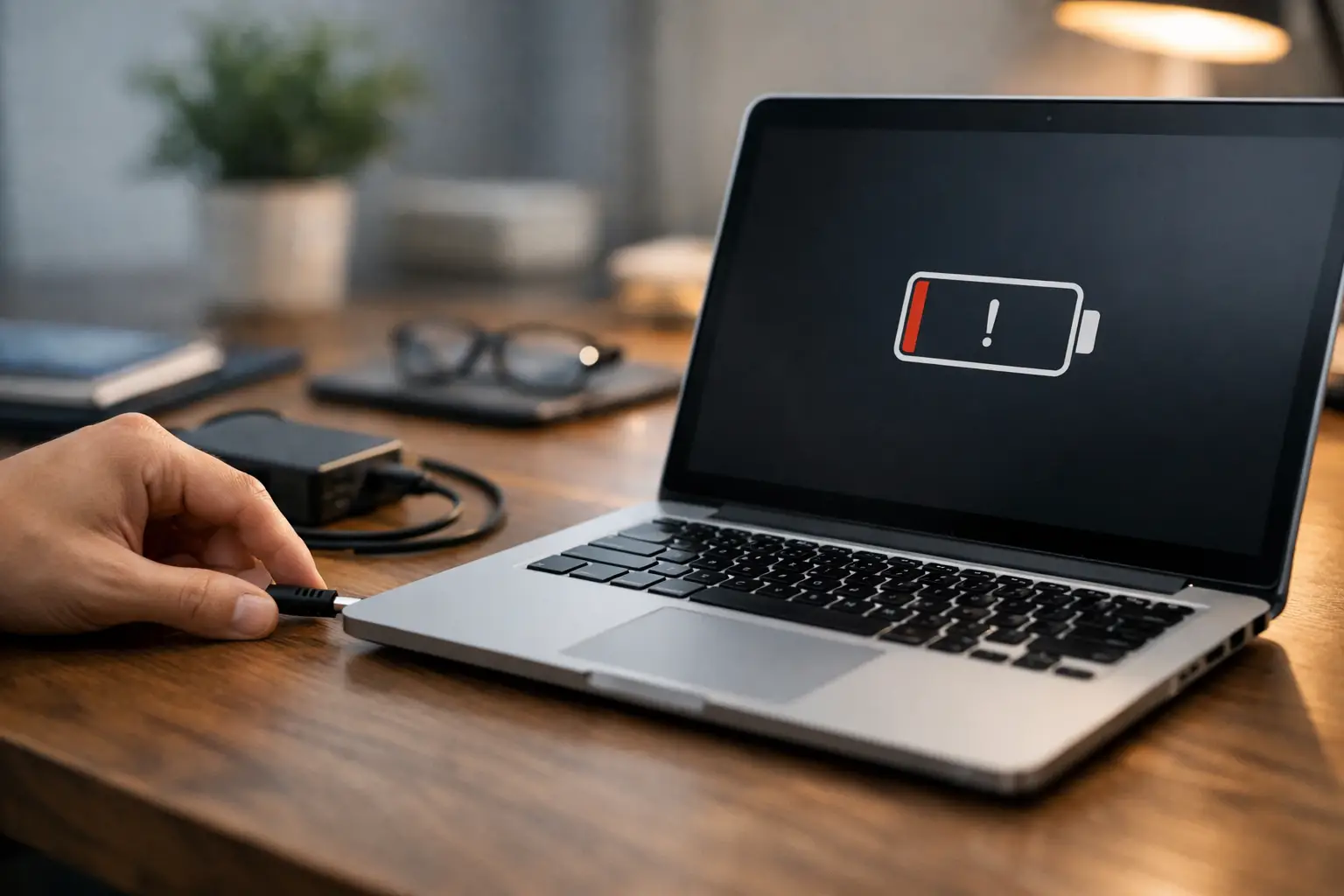
Your laptop battery is sitting at 3%, the charger is plugged in, and nothing is happening. If you’re asking, why is laptop not charging, the problem is usually more common than people think. In many cases, it comes down to a faulty charger, a worn battery, a damaged charging port, or a software issue that needs a quick reset.
The good news is that not every charging problem means a major repair. Some issues are simple enough to catch at home in a few minutes. Others need professional attention, especially if your laptop only charges at a certain angle, gets unusually hot, or stopped charging after a drop or liquid spill.
When a laptop shows it’s connected but the battery percentage does not move, there are usually a few likely causes. The charging adapter may not be delivering full power, the battery may be too worn to hold a charge, or the internal charging circuit may not be working correctly.
It can also be less obvious than that. Some laptops pause charging to protect battery health, especially if they are set to a battery conservation mode. In other cases, the system may be reading power incorrectly because of a firmware or driver issue. That is why the same symptom can have very different fixes.
The key is to narrow it down fast. You want to know whether the issue is external and easy to replace, or internal and worth a proper diagnostic.
Before you assume the laptop itself is the problem, check the basics carefully. A damaged adapter is one of the most common reasons a laptop stops charging, and it is also one of the easiest things to miss.
Look at the cable from end to end. If you see fraying, bent connectors, exposed wire, scorch marks, or a loose charging tip, the charger may be failing even if it still powers on occasionally. Some adapters work intermittently, which can make the issue feel random.
Next, test the wall outlet. Plug the charger into a different outlet you know works. If you are using a power strip or extension cord, remove it from the setup and connect directly to the wall. A weak or unstable power source can prevent proper charging.
If you have access to a compatible charger with the correct wattage, test that too. This is one of the fastest ways to rule out the adapter. It matters that the replacement charger matches your laptop’s power requirements. A low-watt charger may connect but still fail to charge the battery properly.
A charging port takes a lot of daily wear. Repeated plugging and unplugging, pressure on the cable, dust buildup, or accidental yanking can loosen or damage the port over time.
A few warning signs point strongly to port trouble. If the laptop charges only when the cable is held in one position, the connection keeps dropping, or the charger feels loose in the port, the port may be worn or partially broken. If the port looks bent, darkened, or blocked with debris, stop forcing the charger in. That can make the damage worse.
You can inspect the port with a flashlight. If you see lint or dust, light cleaning may help, but be careful. Anything sharp or aggressive can damage the internal pins. If the port is loose or visibly broken, this is usually a repair issue rather than a battery issue.
Laptop batteries do not last forever. Over time, they hold less power, charge more slowly, and eventually stop charging altogether. If your device is a few years old and the battery drains unusually fast or shuts down unexpectedly, battery wear is a strong possibility.
Sometimes the battery fails gradually. You may notice shorter battery life first, then charging pauses, then complete failure. Other times it seems sudden because the battery was already near the end of its life and finally crossed that threshold.
A swollen battery is a more urgent issue. If the bottom of the laptop is bulging, the trackpad feels raised, or the case does not sit flat, stop using the device and get it checked right away. A swollen battery should not be ignored.
Battery replacement is often the most practical fix when the rest of the laptop is working well. It is usually faster and more affordable than replacing the whole device, especially if you rely on it for work, school, or travel.
Not every charging issue is hardware. Sometimes your laptop is trying to protect battery health, and the result looks like a fault. Many brands include battery management settings that limit charging to 60% or 80% to reduce long-term wear.
If your battery seems stuck at a certain percentage, check the device’s battery settings or manufacturer utility. A charging limit may be enabled. This is common on business laptops and newer consumer models.
Driver glitches can also cause charging problems. If the battery icon behaves strangely, the laptop says plugged in but not charging, or the system does not detect the battery consistently, restarting the device can help. In some cases, reinstalling the battery driver through Device Manager can reset the power management system.
A BIOS or firmware issue is less common, but it does happen. If the charging problem started after an update or system change, that clue matters. It does not always mean the update caused the issue, but it is worth noting when you seek a diagnosis.
Laptops are designed to protect themselves when temperatures get too high. If the system is overheating, charging may slow down or stop temporarily until the temperature drops.
This often happens when vents are blocked, fans are clogged with dust, or the laptop is being used on a soft surface like a bed or couch. Gaming, video editing, and heavy multitasking can make the problem more noticeable because the machine is already generating more heat.
If the laptop feels hot and refuses to charge, turn it off, unplug it, and let it cool down. Once it returns to a normal temperature, try charging again. If overheating keeps happening, the internal cooling system may need cleaning or service.
Slow charging is slightly different from not charging at all, but the causes often overlap. A weak charger, incorrect wattage, damaged cable, background power drain, or failing battery can all make charging feel painfully slow.
USB-C laptops are especially sensitive to charger quality. Not every USB-C charger delivers enough power for every laptop. Some phone chargers fit the port but do not provide the wattage needed to charge a laptop battery under normal use. The laptop may hold steady or lose battery slowly while plugged in, which looks like a charging failure.
If your battery charges only when the laptop is asleep or powered off, that usually points to insufficient power delivery or battery wear. It can also happen when the charger is technically compatible but not strong enough for the device’s demands.
If changing the outlet, testing a known-good charger, cooling the laptop down, and checking battery settings solve the problem, you may not need repair. But some situations should not be left to guesswork.
If the laptop has water exposure, visible port damage, a burnt smell, a swollen battery, or no charging response with multiple chargers, professional service is the smarter move. The same applies if the laptop powers on only when plugged in or shuts off the moment the charger is removed. Those signs often point to battery failure, motherboard charging issues, or internal connector damage.
This is where a free diagnostic makes a real difference. Instead of replacing random parts and hoping for the best, a technician can confirm whether the issue is the adapter, battery, charging port, or board-level charging circuit. That saves time, avoids unnecessary costs, and gets you to the right fix faster.
At iFix Hub, this kind of problem is exactly why same-day service matters. When your laptop is part of your workday, school schedule, or travel plans, waiting around for vague answers is the last thing you need.
Physical impact and liquid damage change the situation. If your laptop stopped charging after being dropped, the charging port may have shifted, solder joints may have cracked, or the battery connector may have loosened internally.
After a spill, even a small one, corrosion can begin quickly. The laptop may still turn on for a while, but charging can fail because the power path has been damaged. Rice is not a fix, and continuing to use the laptop can make internal damage worse.
If the issue started after either of these events, skip the trial-and-error approach. Fast professional repair gives you a much better chance of protecting the device and, if needed, your data.
A laptop that will not charge is stressful, but it is usually fixable. The smartest move is to catch the cause early, avoid forcing the charger or ignoring warning signs, and get a clear diagnosis before a small issue turns into a bigger one.





Need help? Our team is just a message away