
No products in the cart.
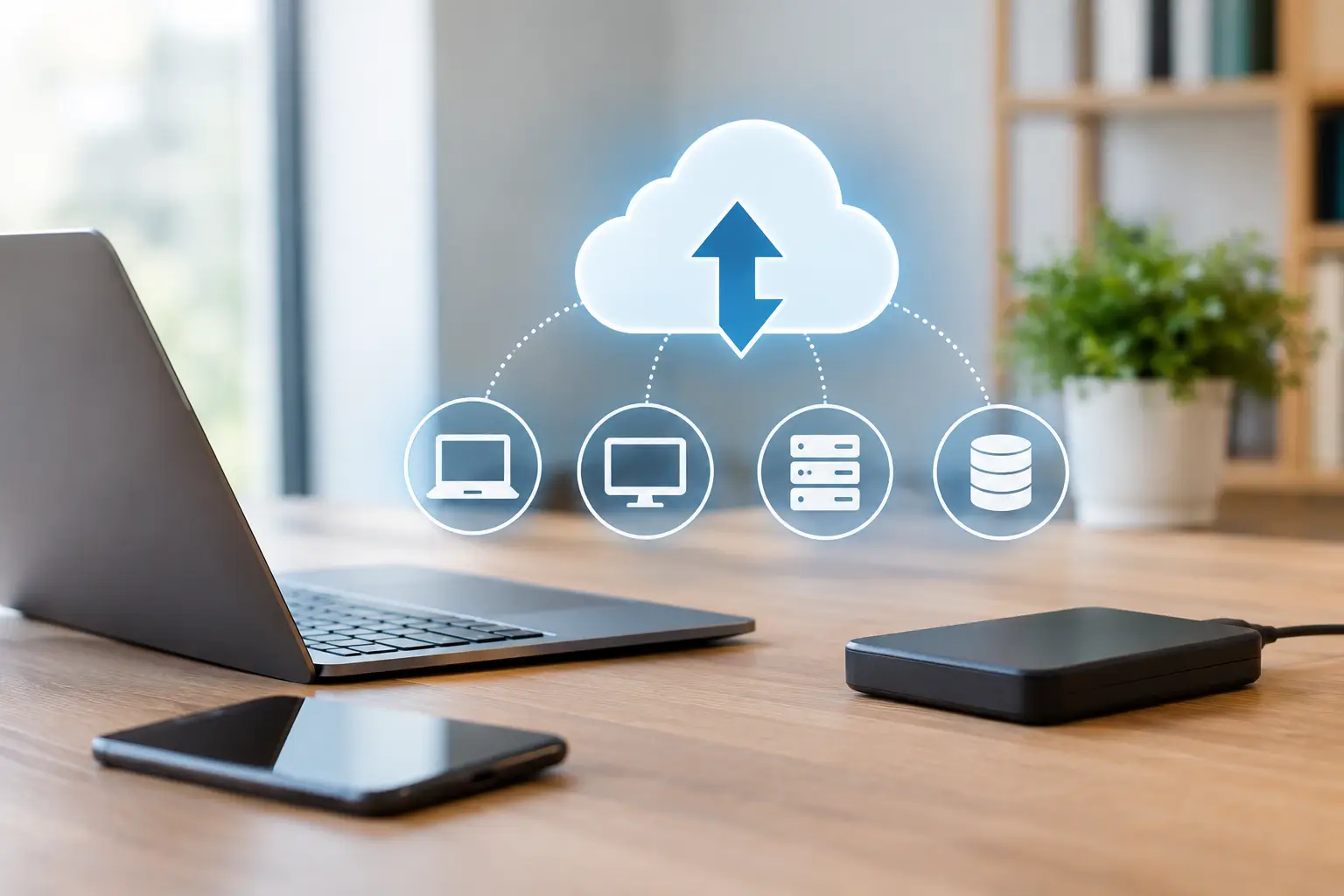
A cracked screen is stressful. Losing the photos, messages, schoolwork, and work files stored on that screen is worse. A smart cloud backup comparison helps you choose protection before a dropped phone, water damage incident, lost laptop, or failed update turns into a data emergency.
The right service is not always the one with the biggest storage number or the lowest monthly price. It is the one that backs up the data you actually use, restores it when you need it, and fits the devices in your household. Here is what to check before trusting your important files to any cloud backup plan.
Cloud storage and cloud backup are often treated as the same thing, but they serve different jobs. Cloud storage lets you place selected files in an online folder so you can open and share them across devices. Cloud backup is meant to create a recoverable copy of your device data automatically.
That difference matters when a phone will not turn on. If you manually uploaded a few vacation photos but never backed up your contacts, messages, app data, or device settings, your recovery options may be limited. A true backup should run in the background on a schedule, not depend on you remembering to move files every week.
Start by identifying what would hurt most to lose. For many phone users, that includes photos and videos, contacts, messages, notes, documents, app data, and device settings. For a laptop, it may also include desktop files, downloads, tax records, presentations, creative projects, and business documents.
Your device ecosystem usually narrows the field. iPhone and iPad users often find iCloud Backup the simplest choice because it works directly with Apple devices. Android users commonly use Google One and Google Drive because photos, contacts, and Android settings connect naturally to a Google account. Windows users may prefer OneDrive for documents and folders that sync with their PC. Families with a mix of devices may need a service that works well across Apple, Android, Windows, and Mac.
A low-cost plan can look appealing until you realize it only covers files and photos, not full-device data. Before signing up, check exactly what the plan protects.
For a phone, ask whether it includes automatic photo backup, contacts, messages, settings, and app data. Some information is tied to the app itself, so chat histories, authentication apps, and game saves may need their own backup settings. Do not assume every app is covered simply because your phone says it has been backed up.
For computers, look for folder protection and version history. Folder protection can automatically save important locations such as Desktop, Documents, and Pictures. Version history lets you restore an older copy if you accidentally overwrite a document or a file becomes corrupted. This is especially useful for students, freelancers, and small business owners who work from a laptop every day.
Storage capacity still matters, particularly for photos and video. A phone can fill a basic free plan quickly if you record high-resolution video, keep years of family pictures, or receive large files through messaging apps. Check your current storage use before buying a plan. Paying for more space than you need is wasteful, but running out of space can quietly stop a backup from completing.
A practical approach is to choose enough space for your current data plus room to grow. If your photo library is already close to a plan limit, move up rather than hoping you will remember to clean it out later.
Backups are only valuable if you can restore them without a major delay. Recovery speed depends on your internet connection, the amount of data stored, and the service’s restore process. A full phone restore with years of photos and apps can take hours, sometimes longer. A laptop with hundreds of gigabytes of files can take even more time.
That does not mean cloud backup is a bad choice. It means you should set realistic expectations. You may be able to get your contacts, messages, and essential apps back first, while large photos and videos continue downloading in the background.
When comparing services, consider these questions: Can you restore to a new device easily? Can you access individual files before the full restore finishes? Can you retrieve deleted files? How long are deleted files kept before they are permanently removed?
The last question is easy to overlook. If you accidentally delete a folder, a recycle bin or recovery window can save the day. But those windows vary by provider and plan. If a file matters, restore it as soon as you notice it is missing.
Your backup may contain private photos, financial documents, saved passwords, and personal messages. Security is not an extra feature. It is part of choosing a service you can trust.
Use a strong, unique password for the account that controls your backup. Then turn on two-factor authentication. This adds a second step when someone tries to sign in, making it much harder for an attacker to access your files with a stolen password.
Also check account recovery options. Make sure your recovery phone number and email address are current. If you cannot access the account connected to your backup, recovering a damaged or replaced device becomes much harder.
Encryption is another term you will see often. It means your data is protected while being sent and stored. Some providers also offer extra privacy options, but those can come with trade-offs. If you choose a setup where only you hold the recovery key, forgetting that key may mean no one can retrieve the data for you. Better privacy can require more personal responsibility.
Avoid using shared family passwords or an old email address you rarely check. The convenience is not worth the risk when your photos, documents, and device history are on the line.
Most major services offer free starter storage, then charge monthly or yearly for larger plans. The best value is not automatically the cheapest plan. Consider how many people and devices need coverage.
A family plan can make sense if multiple people use the same ecosystem and you want one shared storage pool. It can be more affordable than separate subscriptions, but confirm whether each person’s files remain private. Shared storage should not mean everyone can browse each other’s photos or documents.
Cross-device support is important for people who switch between a phone, tablet, work computer, and home laptop. If you use an iPhone and a Windows PC, for example, choose a backup setup that lets you reach key files from both. If you are all-in on one device brand, the built-in backup option may be the easiest to manage.
Be careful with plans that bundle extra services you will never use. A higher-priced subscription may include entertainment, security tools, or premium features, but storage and reliable recovery should remain your first priorities.
Cloud backup protects you from many common problems, including theft, accidental damage, and a device that suddenly will not power on. But no single backup method covers every situation. Account lockouts, sync mistakes, expired payment methods, and accidental deletions can still create trouble.
For irreplaceable photos, work records, or business files, keep another copy on an external drive or secure computer. This follows a simple idea: important data should exist in more than one place. You do not need a complicated setup. Even a monthly copy of your most valuable folders to an external drive adds meaningful protection.
There is also a difference between sync and backup. A synced folder can copy deletions across devices. If you delete a file on your laptop, that deletion may appear on your phone too. A backup with version history gives you a better chance of recovering an earlier copy.
Once you choose a service, take ten minutes to make sure it is truly working. Confirm that backup is turned on, connect to Wi-Fi and power if your device requires it, and check the date and time of the latest successful backup. Open your photo library or file folders from another device to confirm that recent items appear.
Then test the recovery process with one nonessential file. Restore it, open it, and make sure it is usable. This small test removes guesswork long before an urgent repair or replacement is needed.
If a phone is damaged but still turns on, back it up immediately before handing it over for service. At iFix Hub, customers can get clear guidance on data recovery options and fast repair support, but an up-to-date backup gives you the strongest protection against surprises.
Your phone and laptop hold pieces of your life that cannot always be replaced. Set up the backup while everything is working, check it occasionally, and let a device accident stay just a device accident.





Need help? Our team is just a message away