
No products in the cart.
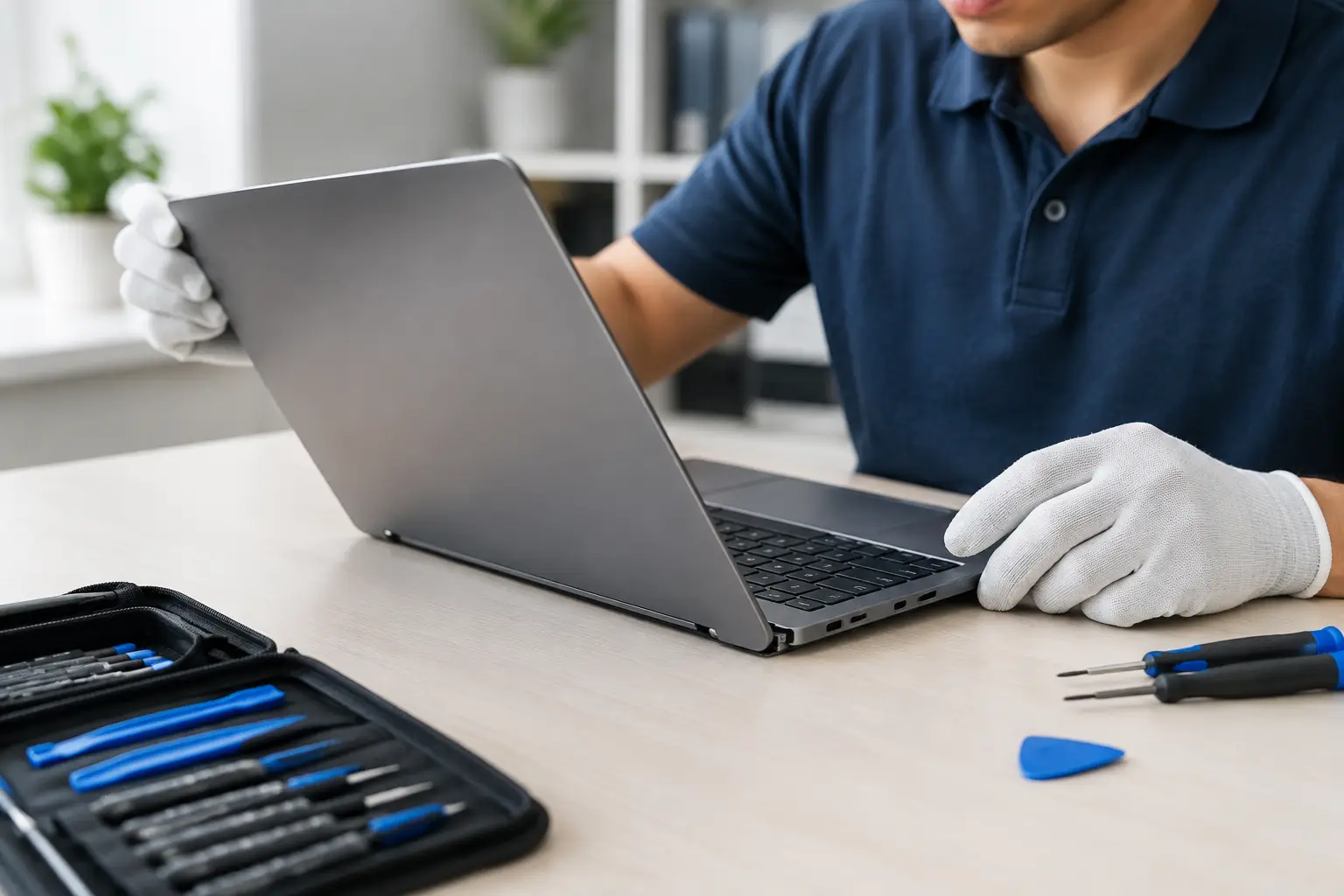
A cracked screen, a battery that dies before lunch, or a laptop that will not charge can stop work and school without warning. If you need to prepare laptop repair, a few simple steps before you visit a technician can protect your privacy, prevent delays, and make sure the repair starts with the right diagnosis.
You do not need to be a computer expert. The goal is simply to give the repair team a clear picture of the problem while keeping your important files and accounts secure. That means backing up what you can, bringing the right accessories, and knowing which details matter.
Start by taking a moment to notice what your laptop is doing. Does it only shut down when unplugged? Does the screen flicker after it was dropped? Is the charging port loose, or does the computer power on but never reach the login screen? Specific symptoms help a technician narrow down the cause faster.
If your laptop still turns on, write down when the issue began and what happened right before it. A spill, a fall, a recent software update, an overheating warning, or a charger that suddenly stopped working can all point to different repairs. You do not need to diagnose the problem yourself. A clear timeline is enough.
Also, take a quick photo of any visible damage. This is useful for your own records, especially if the laptop has a bent case, cracked display, missing key, or liquid damage indicator. It gives you a simple before-repair reference and helps avoid confusion later.
A reputable repair shop handles devices carefully, but storage problems can be unpredictable. If your laptop can still boot, save your most important files before handing it over. Focus first on documents, family photos, school projects, business files, and anything stored only on the laptop.
You can copy files to an external drive or use a cloud storage account you already trust. Do not spend hours trying to create a perfect backup if the laptop is failing quickly. Prioritize the files that would be hardest to replace.
If the laptop will not turn on, do not keep forcing restarts or taking it apart. Repeated attempts can sometimes make a failing drive, battery, or charging issue worse. Let the technician know that your data is a priority. In many cases, the repair path can be planned around protecting or recovering what matters most.
Your laptop may contain saved passwords, work accounts, photos, messages, and financial information. Before service, sign out of sensitive accounts when possible and remove files you do not want anyone to access. If there are private folders, encrypting or moving them to a backup drive can offer additional peace of mind.
For many hardware repairs, a technician may need to log in briefly to test the screen, keyboard, charging function, Wi-Fi, camera, or battery performance. Ask the shop what level of access is required for your specific issue. If you use a separate guest account, that can be a practical option for testing on a working system.
Do not share a password unless it is truly needed for diagnostics. If access is necessary, change the password after pickup. This is a sensible step for any device service, not a sign that you expect a problem.
Bring the laptop itself and its original charger if the problem involves charging, battery life, unexpected shutdowns, or power. Not every repair requires the charger, but it can help rule out a damaged cable or incorrect power adapter in minutes.
If you use a docking station, external monitor, USB-C hub, or specialty adapter that seems connected to the issue, bring that too. For example, a laptop that will not display through a monitor may have a port issue, a damaged adapter, or a settings problem. Testing the actual accessory saves guesswork.
There are a few items you should keep with you instead of leaving them in the laptop bag: your ID, external drives with personal backups, payment cards, and any documents containing sensitive information. If your laptop has a removable SIM card or memory card, take it out unless the repair team needs it to test a specific function.
For a smooth check-in, have these details ready:
These details do not replace a professional diagnostic. They give the technician a useful starting point and help avoid repairing the symptom while missing the cause.
It can be tempting to say a laptop “just stopped working,” especially after a spill or a drop. But being upfront is the fastest way to get the right repair. Liquid damage can affect more than the keyboard. It may reach the battery, charging circuit, trackpad, motherboard, or internal connectors, even if the laptop seemed fine at first.
If liquid was involved, turn the laptop off, unplug it, and avoid charging it. Do not use a hair dryer, place it in rice, or keep testing it every few hours. Heat and repeated power attempts can increase the risk of internal damage. Bring it in as soon as possible and explain what was spilled and when.
Previous repairs matter too. A third-party screen, battery, keyboard, or charging port may affect compatibility and diagnosis. There is no downside to sharing that information. It helps the technician inspect the correct parts from the start.
Fast service matters, but clear expectations matter just as much. Before approving a repair, ask what the diagnostic found, what part needs replacement, and whether there are options based on your budget and timeline. A good repair team should explain the issue in plain language, not bury you in technical terms.
Ask whether the quote includes parts and labor, how long the repair is expected to take, and what warranty applies to the work. Same-day service is often possible for common repairs when parts are available, but water damage, motherboard faults, and data recovery may require more testing. The honest answer is sometimes, “It depends.” That is better than a rushed promise that does not match the condition of your laptop.
If your device contains essential work or school files, ask whether testing could affect your data and whether a backup is recommended before proceeding. You should also confirm how the shop will contact you if the diagnostic reveals a second issue or the repair cost changes.
Repair is often the practical choice for a damaged screen, worn battery, faulty keyboard, charging port, fan, or storage drive. These problems can make a capable laptop feel unusable, yet they may be resolved for much less than the cost of a new computer.
Replacement may make more sense when a very old laptop has multiple major issues, cannot support the software you need, or requires an expensive motherboard repair. Even then, do not assume the device is worthless. Data recovery, a battery replacement to access files, or an affordable fix that buys you time can still be valuable.
A professional diagnostic gives you facts to work with. At iFix Hub, the focus is on clear answers, affordable options, and fast repairs that fit the way people rely on their devices every day.
Before leaving, turn the laptop on and test the repair with the technician if possible. Check the screen for dead spots or unusual brightness, type on the keyboard, connect the charger, test the trackpad, and make sure the laptop starts normally. If a camera, speaker, Wi-Fi connection, or USB port was part of the repair, test that function too.
Once you are home, change any password you shared for testing and confirm that your important files are still accessible. Keep your repair receipt and warranty information in a safe place. If something does not feel right, contact the repair shop promptly rather than waiting for a small issue to become a bigger interruption.
The best preparation is not complicated: protect your data, share the full story, and choose a repair team that explains the next step clearly. That gives your laptop the best chance of getting back to work quickly, with fewer surprises along the way.




Need help? Our team is just a message away