
No products in the cart.
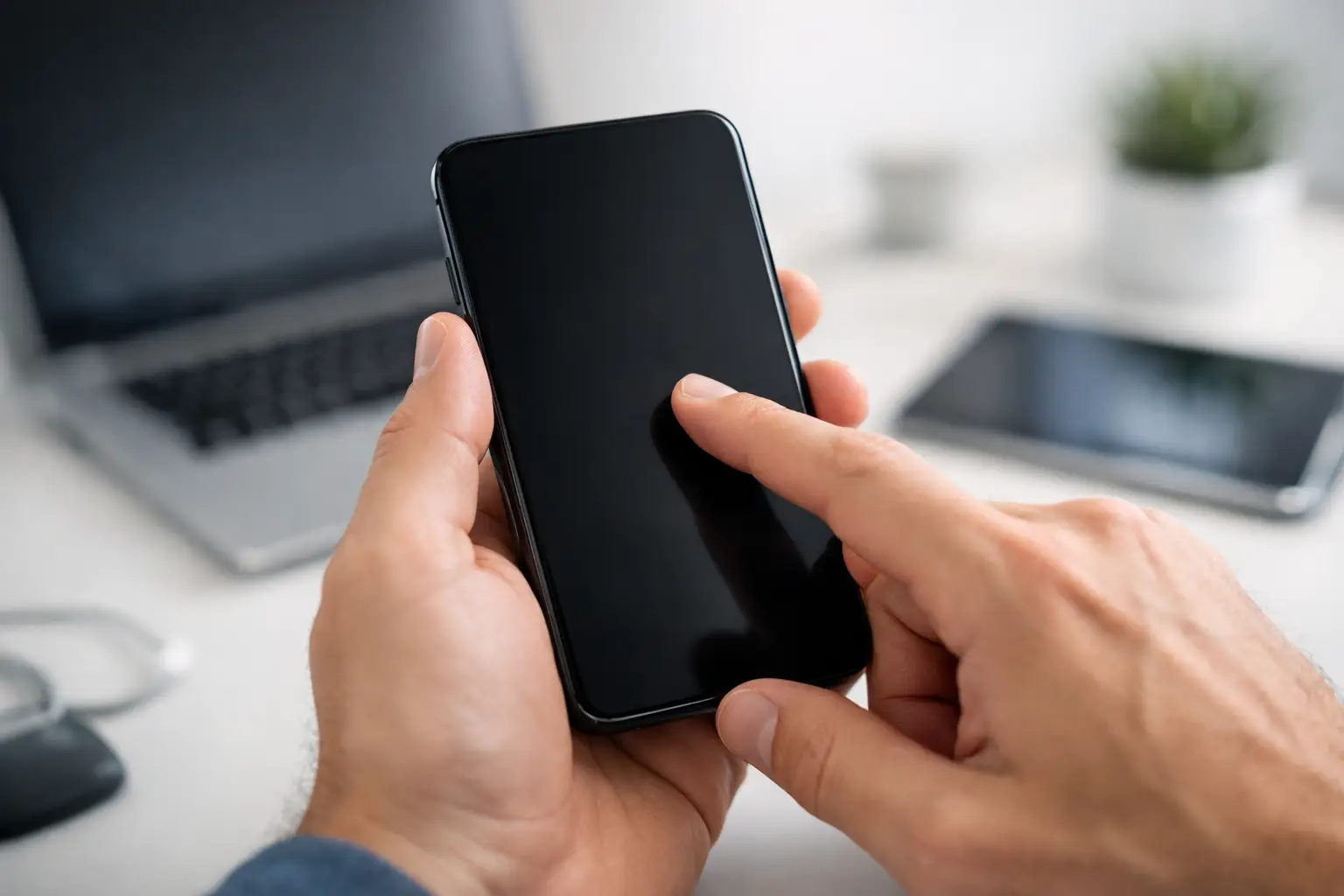
When your phone stops responding right as you need to answer a call, pull up directions, or approve a payment, it goes from annoying to urgent fast. If you’re searching for how to fix unresponsive touchscreen problems, the good news is that some causes are simple and temporary – and some are clear signs you should stop troubleshooting and get professional help before the damage gets worse.
The first rule is simple: do not keep pressing harder. A touchscreen that is lagging, freezing, or missing taps usually is not helped by force. In some cases, extra pressure can worsen a cracked display, spread internal damage, or make a moisture-related issue more serious.
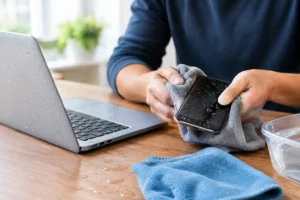
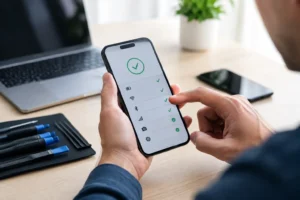
Start with the easy checks. If your hands are wet, greasy, or covered in lotion, clean and dry them. Then wipe the screen with a soft, dry microfiber cloth. Smudges, moisture, and grime can interfere with touch sensitivity more often than people realize, especially around the edges where gestures and swipes begin.
If you use a screen protector, take a close look at it. A cheap, poorly fitted, or cracked protector can cause dead spots, delayed response, or random touch behavior. If the screen protector is lifting at the corners, has trapped moisture underneath, or is visibly damaged, remove it and test the phone again. This is one of the fastest ways to rule out an accessory problem before assuming the screen itself has failed.
Phone cases can also cause trouble. A warped case or one that presses too tightly against the display can interfere with touch along the edges. Remove the case for a few minutes and see whether the screen behaves normally.
A frozen or partially unresponsive display is not always a hardware issue. Sometimes the problem starts with a software glitch, an app conflict, or an overloaded system. A restart clears temporary bugs and gives the device a chance to reset touch functions.
If the touchscreen still works a little, perform a normal restart. If it does not respond at all, use a force restart based on your device model. This will not fix physical damage, but it can help when the phone has locked up after an update, app crash, or storage overload.
After rebooting, test the screen in several areas. Open messages, swipe between home screens, type on the keyboard, and try gestures from the top and bottom edges. If only one section is failing, that often points to screen damage rather than a software issue. If the whole screen is lagging, software remains a possible cause.
A lot of people ask how to fix unresponsive touchscreen issues after dropping their phone, and that detail matters. If the problem started right after impact, the screen assembly may be damaged even if the glass looks mostly fine. Internal connectors can loosen, the digitizer can fail, and pressure points can create dead zones that get worse over time.
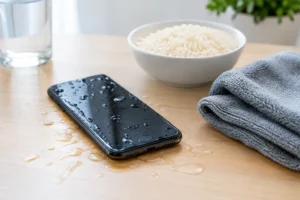
Water exposure is another big one. Even a little moisture from rain, steam, spills, or bathroom humidity can affect touch response. If your phone was recently exposed to liquid, turn it off if possible and do not charge it. Charging a wet device can create more serious internal damage. A touchscreen that acts erratically after moisture exposure often needs a professional diagnostic, because the issue may not stay limited to the screen.
Heat matters too. Phones left in a hot car, used heavily while charging, or pushed hard during gaming can become sluggish and stop responding properly. Let the device cool down naturally, away from direct sunlight, and then test it again. If responsiveness returns when the phone cools, that is useful information – but recurring overheating still needs attention.
If there is no visible damage and the issue seems to come and go, software is worth investigating. Start by closing apps running in the background. A device that is low on memory or storage can lag badly enough to feel like the screen is broken.
Check whether the problem started after installing a new app. Some apps can interfere with performance, especially if they are poorly optimized or constantly running overlays. Remove recently installed apps and test the screen again.
System updates can help as well. If your phone is responsive enough to navigate settings, look for available software updates. Manufacturers often release fixes for touch bugs, freezing, and screen sensitivity issues. That said, if the device is barely usable, forcing update attempts can be frustrating. At that point, it may be faster to have a technician confirm whether the issue is software or hardware.
Accessibility settings can sometimes play a role too. Touch accommodations, gesture settings, screen sensitivity adjustments, or accidental changes meant for stylus or glove mode can affect how the display responds. This is less common, but it happens.
There are usually a few clues that tell you basic troubleshooting will not be enough. If the screen is cracked, flickering, showing black spots, changing colors, or responding to touches on its own, the problem is likely hardware-related. The same goes for screens that work in one area but not another, or displays that only respond after repeated tapping.
Another red flag is ghost touch. That is when the screen opens apps, types, or taps by itself. Ghost touch can come from screen damage, internal pressure, moisture, charging issues, or failing components. It is not something to ignore, especially if the phone contains important work files, banking apps, or personal photos.
Charging accessories can play a role too. Low-quality cables or adapters sometimes cause erratic touch behavior while plugged in. Unplug the charger and test the screen. If the problem only happens during charging, stop using that accessory right away.
There is a point where more home fixes just waste time. If your device is still unresponsive after cleaning the screen, removing the protector and case, restarting, and checking for software issues, the next step should be a proper diagnostic.
This is especially true if your phone has been dropped, exposed to water, or already has visible screen damage. A touchscreen is not just glass – it is part of a layered assembly that includes touch sensors, display components, and internal connectors. The surface can look minor while the actual failure underneath is more serious.
Trying random fixes from the internet can make things worse. Excessive heat, aggressive pressing, or opening the device without the right tools can turn a same-day repair into a more expensive problem. If the phone holds important data, getting it checked early is usually the safer move.
A professional repair shop can quickly tell whether the issue is the screen, an internal connector, battery swelling, liquid damage, motherboard trouble, or a software-related fault. That matters because the right repair depends on the actual cause.
For many touchscreen failures, a screen replacement is the most efficient solution. If the damage is limited to the display assembly, this can often be completed with same-day service. If liquid damage is involved, the technician may need to inspect internal components before replacing parts, since installing a new screen on a corroded device may not solve the root problem.
This is also where quality matters. Genuine parts, certified technicians, and a comprehensive warranty give you a better chance of getting the repair done right the first time. Fast repairs are important, but so is knowing you will not be back a week later with the same issue.
Not every touchscreen problem is avoidable, but a few habits reduce the odds. Use a properly fitted case, choose a quality screen protector, keep charging accessories in good condition, and avoid exposing the phone to moisture and extreme heat. If the device does take a hit, pay attention to small changes in touch response instead of waiting for a full failure.
It also helps to deal with minor damage early. A small crack or occasional dead spot rarely improves on its own. In many cases, early repair is faster, simpler, and more affordable than waiting until the screen stops working completely.
If your touchscreen is failing and you need your device back in working order quickly, the best move is often the simplest one: stop guessing, get a free diagnostic, and let a trusted repair team handle it. At iFix Hub, that means fast repairs, genuine parts, same-day service on many common issues, and the kind of clear answers people need when their phone suddenly stops cooperating.
A phone that will not respond is stressful, but it is usually fixable – and the sooner you act, the better your chances of a quick, affordable repair.


Need help? Our team is just a message away