

No products in the cart.
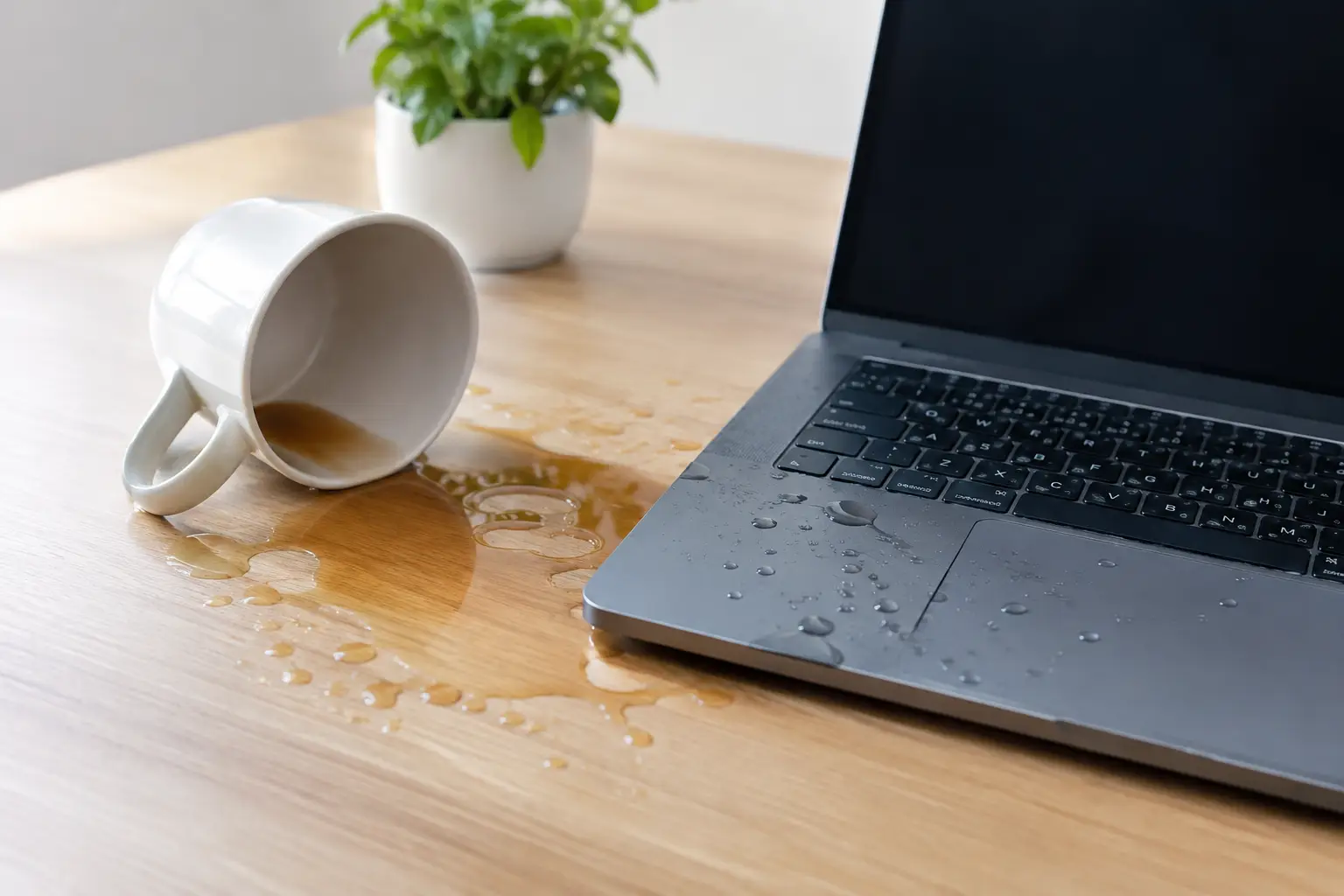
Coffee lands beside the trackpad five minutes before a class, meeting, or flight. The instinct is to wipe it off, test the keyboard, and hope for the best. But this laptop spill recovery example shows why the first few minutes matter more than whether the laptop appears to work right away.
A liquid-damaged laptop can stay powered on long enough to create a much bigger problem. Moisture can bridge tiny electrical connections, corrode internal components, and put photos, work files, and business data at risk. Fast, calm action gives the device its best chance of recovery.
Imagine a student knocks a half-full cup of sweetened coffee onto a laptop keyboard. The screen is still on, the fan is running, and the laptop seems normal. The student wipes the keys, presses a few buttons to check them, then plugs in the charger because the battery is low.
That last step can turn a manageable spill into a serious repair. Coffee is not just water. Sugar, milk, and acids leave residue behind. Even after visible moisture dries, residue can continue causing corrosion and electrical faults.
The safer response is simple: unplug the charger immediately, disconnect any USB devices or external drives, and shut the laptop down. If the power button does not respond, hold it until the device turns off. Do not keep testing keys, opening apps, or charging it to see whether it survived.
Next, place the laptop on a dry towel with the keyboard facing down at a slight angle so liquid can drain away from the internal components. Do not shake it aggressively. That can push liquid deeper into areas it did not reach at first.
In this example, getting the laptop to a repair technician the same day makes a real difference. A professional can open the device safely, inspect the spill path, clean residue from the board and keyboard area, and check the battery, charging circuit, trackpad, display connections, and storage drive. The outcome may range from a straightforward cleaning to a keyboard replacement or board-level repair. It depends on what spilled, how much entered the device, and whether power was running through it.
Speed matters, but the goal is not to perform a complicated home repair. Your job is to stop the power source and limit further damage until a technician can inspect the laptop.
First, unplug the charging cable and remove accessories. A connected charger, dock, flash drive, or external monitor can introduce power through another path. If the laptop has a removable battery, take it out only if it can be removed easily without tools. Do not force panels open while liquid is present.
Then turn the laptop completely off. Sleep mode is not enough. A sleeping laptop can still have power running through parts of the system. Hold the power button until the screen and indicator lights are off.
Blot the outside with a clean, lint-free cloth. Avoid pressing hard on the keys or trackpad. Then set the laptop in an inverted tent-like position on a towel, with the keyboard angled downward. This is not a cure, but it can help prevent liquid from pooling inside.
Finally, arrange a professional diagnostic as soon as possible. Same-day service is especially valuable for spills involving coffee, soda, juice, alcohol, soup, or salt water. These liquids can leave conductive or corrosive residue that a few days of air drying will not remove.
Many laptops that could have been saved arrive after well-meant DIY steps caused extra damage. The biggest mistake is turning the device back on repeatedly. A laptop that boots once is not necessarily safe to use. Each startup can create a short circuit in a different part of the board.
Another common mistake is using a hair dryer. Heat can warp keys, soften adhesives, damage the display, and move moisture farther into the laptop. Compressed air is also risky because it can force liquid under chips and connectors.
Rice is not a reliable solution. It does not remove sticky residue or corrosion, and it does not reach moisture trapped under shields, connectors, or the motherboard. Waiting several days in rice can cost valuable time while corrosion develops.
Do not assume a spill is harmless because it was “only water.” Clean water is less damaging than a sugary drink, but it can still cause a short circuit if the laptop remains powered. It can also leave minerals behind, depending on the source. Treat every internal spill as urgent.
Laptop spill repair is about more than getting the screen to turn on. A proper inspection focuses on the components most likely to fail later, including the keyboard, battery, charging port, cooling system, trackpad, display connectors, and motherboard.
For a working professional, the priority may be recovering presentation files, client documents, and locally stored projects. For a student, it may be restoring notes, assignments, and software needed for class. Small business owners may need quick access to invoices, customer records, or essential applications.
That is why a repair shop should check data recovery options early. If the storage drive is healthy, files may be backed up before further repair work begins. If the laptop cannot power on safely, a technician can assess whether the drive can be accessed separately. There is no universal answer because modern laptops store data in different ways, and some have soldered storage or encryption protection.
At iFix Hub, a free diagnostic helps identify the actual condition of the device before you commit to a repair. You should receive a clear explanation of the issue, the recommended fix, expected turnaround time, and price. That clarity matters after a spill, when guessing can become expensive.
If a few drops land on the closed lid or outer casing and never reach a port, keyboard, vent, or hinge, careful wiping may be all that is needed. Still, watch for delayed issues such as sticky keys, charging problems, flickering, unexpected shutdowns, or a burning smell.
Bring the laptop in right away if liquid touched the keyboard, trackpad, vents, USB ports, charging port, or underside of the device. Urgent service is also the right call if the laptop was on when the spill happened, will not start, starts but behaves strangely, makes unusual sounds, overheats, or shows screen lines.
Time is especially critical when the spill includes sugar, dairy, carbonation, salt, or alcohol. These substances create more cleanup work than plain water and can damage components even after the surface looks dry.
A good spill recovery process starts with a full inspection, not a quick promise that everything will be fine. The laptop is assessed for visible liquid entry, residue, corrosion, and component damage. If safe, the technician tests key functions and evaluates your data access needs.
From there, the repair may include internal cleaning, corrosion treatment, replacement of damaged parts, or more advanced board repair. Not every laptop is worth the same level of repair. On an older budget device with extensive motherboard damage, replacing the laptop and recovering the data may make more financial sense. On a newer laptop or a device with valuable files, repair is often the better path.
Ask about the parts being used, warranty coverage, and expected timeline. Genuine parts and a comprehensive warranty provide more confidence than a temporary fix that fails after a few weeks. The right repair should be practical, transparent, and designed to get you back to work without unnecessary delay.
A spill does not automatically mean your laptop is done. Turn it off, keep it unplugged, skip the rice and hair dryer, and get a professional assessment quickly. The sooner the inside is inspected and cleaned, the better the chance of protecting both your device and the files you rely on.


Need help? Our team is just a message away